
Most people who look after a screen don’t want to learn a CMS. They want to put the lunch offer up before 11:30, swap the opening hours for the holidays, or tell everyone the building is closed today. They want to do it from wherever they are, which usually means from their phone.
That is what easyCMS Studio is for. It is a new, simpler way to run your screens. It has big buttons and plain words, it works on a phone as well as on a desktop, and it is built around the few things you actually do every week. Everything the full CMS can do is still there when you need it. Studio just keeps it out of the way when you don’t.
Use your usual easyCMS username and password, on your phone or your computer.
How to sign in
- Go to app.myeasycms.com/studio on your phone, tablet or computer.
- Sign in with your usual easyCMS username and password. It is the same account, so there is nothing new to create.
- You land on Studio’s Home page, with every screen you own and how each one is doing.
If you are already signed in to easyCMS, Studio opens straight away. On a phone, use your browser’s Add to Home Screen option so Studio is one tap away. There is no app to download.
Good to know Studio is part of easyCMS V4, at
app.myeasycms.com. If you signed up before the move and still use easyCMS V3 atcms.myeasycms.com, ask us about moving your screens across.
Built for the phone in your pocket
Studio was designed on a phone screen first and then given more room on a desktop, not the other way round. A few choices make the difference:
- A tab bar at the bottom. Home, Screens, Designs, Schedule and Library sit where your thumb already is, the way they do in the apps you use every day.
- Big touch targets. Every button and list row is large enough to hit on the first try, including when you are reordering a playlist with one hand.
- One task per page. Each page does one job and says it in plain words: “Show on Shop window”, not a menu of 30 options.
- What you see is what plays. The preview in Studio is the real design at the real shape of your screen, landscape or portrait. If it looks right on your phone, it looks right on the wall.
Five things you do most, each a tap away
Most screens need the same handful of jobs done over and over. Studio puts each of them one tap from the Home page.
1. Add a screen
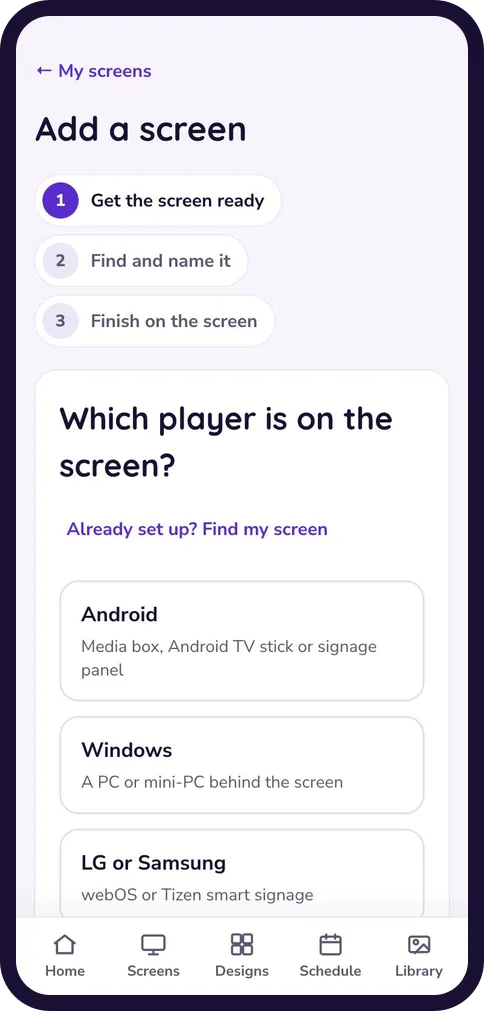
Choose the player you have (Android, Windows, or LG and Samsung smart signage) and Studio walks you through it in three steps: get the screen ready, find and name it, finish on the screen. Your CMS address and key are shown with copy buttons, so you never retype them from an email. When the screen has connected, Studio asks the next question straight away: what should it show?
Watch out Studio finds a new screen by your internet connection. Add it from a phone or laptop on the same network as the screen, the venue’s Wi-Fi rather than mobile data, and it shows up on its own.
2. Change what’s playing
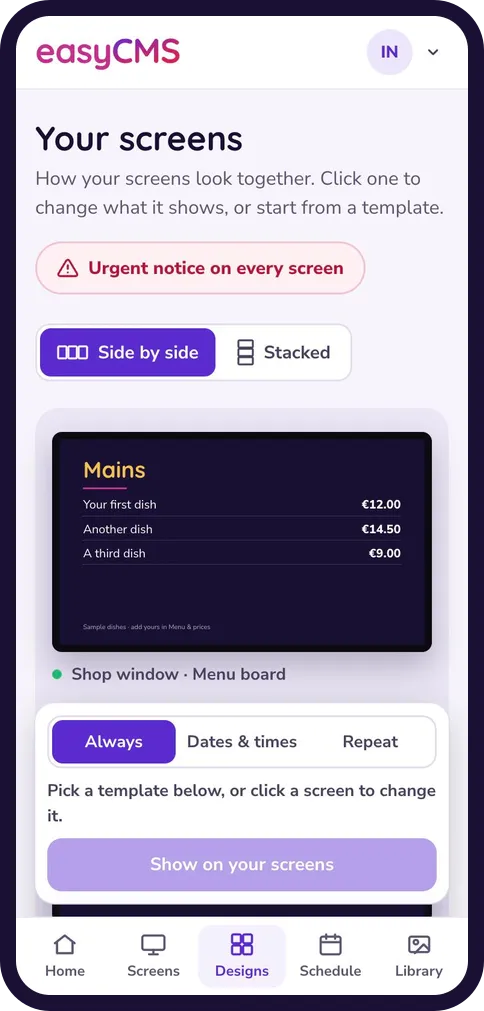
Designs shows all your screens together, side by side or stacked, the way they hang on the wall. Tap a screen, pick a template, tap Show on and you’re done. With two to four screens you can give each its own design or use a ready-made set across all of them.
3. Decide when it plays
Every design has three choices for when it plays:
- Always. It is what the screen shows.
- Dates & times. For example from Friday 18:00 to Sunday 23:00, for a weekend offer.
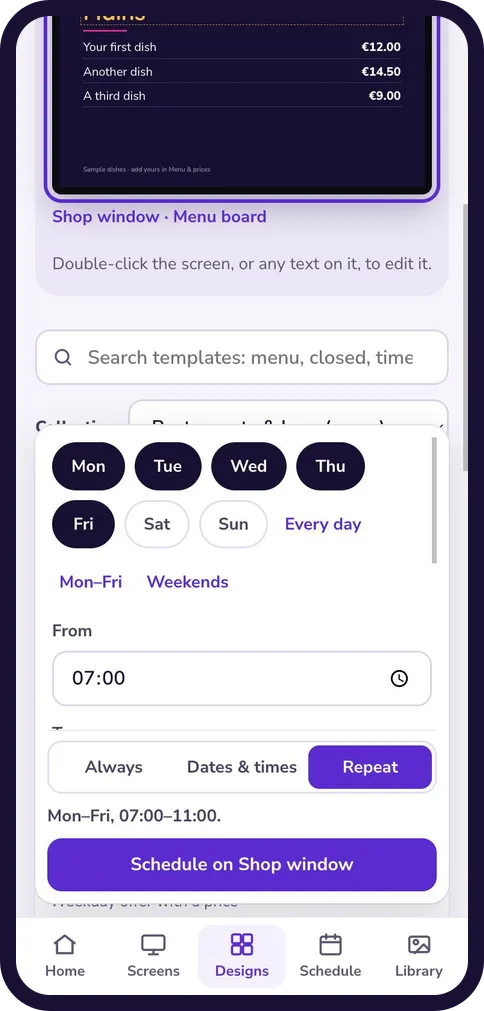
- Repeat. Pick days (Mon–Fri, weekends or any mix) and a time, such as breakfast from 07:00 to 11:00 every weekday.
A timed design takes over during its slot, and the screen goes back to its usual design afterwards. The Schedule page lists what each screen will play and marks what is On now. You can remove any entry with one tap.
4. Photos, videos and playlists
Library is where your photos and videos live. Upload straight from your phone’s camera roll. To build a playlist, add files, drag them into order (or use the arrows), preview it, then put it on any number of screens. Edit the playlist later and every screen playing it updates.
5. Send an urgent notice
Some messages can’t wait for a new design. The Urgent notice button puts one message on every screen at once, in front of everything else. It comes with ready-made wording for the usual cases:
- Closed today
- Please leave the building
- Fire alarm test
- We are running a little late
While a notice is live, a red bar at the top of every page in Studio says so. Stop it puts every screen back to what it was showing.
Templates: start from something that already looks good
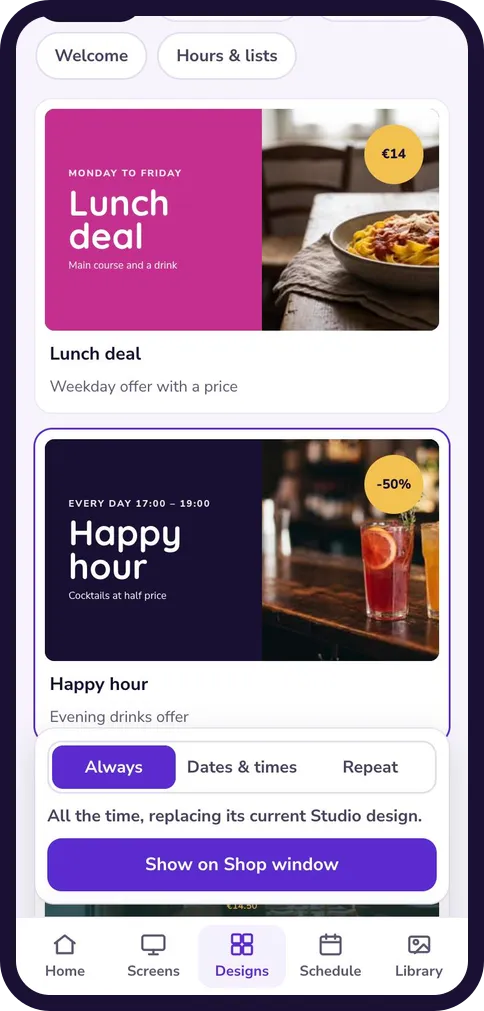
A blank screen is the hardest place to start. Studio gives you more than 80 ready-made templates, each with sample text, colours and photos. Pick one, change the words to yours, and it is ready to show.
Find the right one
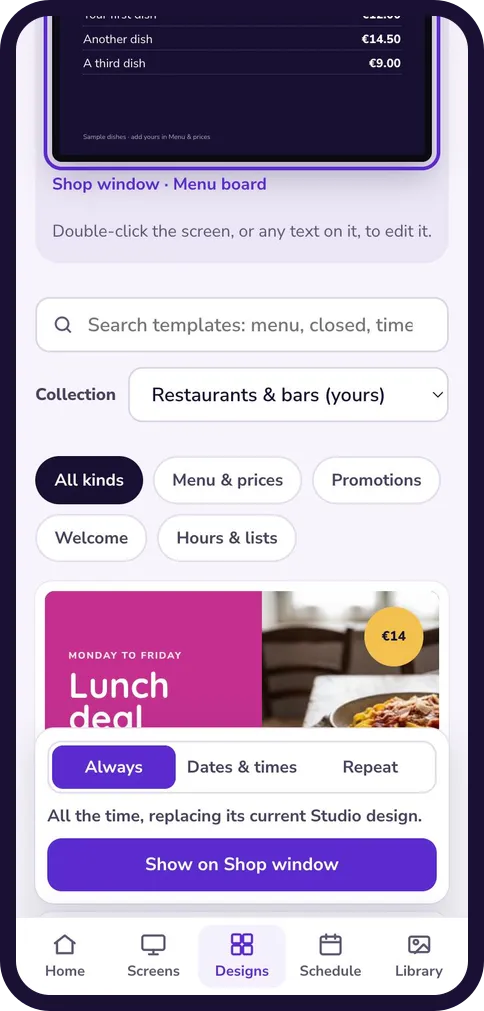
The first time you open Studio, it asks where your screens are: a restaurant, a shop, an office, a school, a clinic, a hotel, a gym, a factory, a church, or somewhere else. That choice decides which templates you see first. It never hides anything, and you can change it any time from the account menu.
From there you can search (“menu”, “closed”, “timetable”), browse by collection, or filter by kind: menus and prices, notices, timetables, countdowns and goals, promotions, welcome, people, directions, hours and lists, and photos and video.
Examples by business
Some of the templates in each collection:
| Your business | Templates you can use straight away |
|---|---|
| Restaurant, café or bar | Lunch deal, Happy hour, Today’s specials, Opening hours with kitchen times, Welcome and Wi-Fi |
| Shop or supermarket | Window offer, New collection, At the till, Store guide with arrows, Sale countdown |
| Office or company | Visitor welcome, Company news, Meeting room door (on now and next), Target board, Lobby directory |
| School or university | Closure notice, Exams today, Exam countdown, Classroom door, Student work slideshow |
| Practice, clinic or pharmacy | Waiting room welcome, How to check in, Running late, Meet the team, Clinics today |
| Hotel or venue | Lobby welcome, Breakfast times, Spa and pool hours, Lift lobby directions, Meeting room door |
| Gym or sports club | Joining offer, Monthly challenge, Studio door (the class on now), Our trainers, Maintenance notice |
| Factory or warehouse | Days without an accident, Safety message, Quality alert, Shift times, First aiders today |
| Church or place of worship | Service times, This week, Roof appeal with a progress bar, Photos from events |
Ready-made sets for more than one screen
Do you have a row of screens above a counter? There are 30 sets that fill two to four screens in one go. A restaurant’s Menu wall puts starters, mains and drinks side by side. A school’s Entrance stacks a visitor welcome above the school day. A factory’s Clock-in point pairs days without an accident with shift times.
Templates that do the work for you
A few templates keep themselves up to date, so you set them once and leave them:
- Countdown counts the days to your event, sale or exam on its own.
- Days since counts up every day, such as days without an accident.
- Timetable and Now & next highlight what is on now and what follows, as the day goes by.
- Menu boards read from one list on the Menu & prices page. Change a price once and every menu screen updates. Mark a dish sold out the same way.
Make it yours without a design course
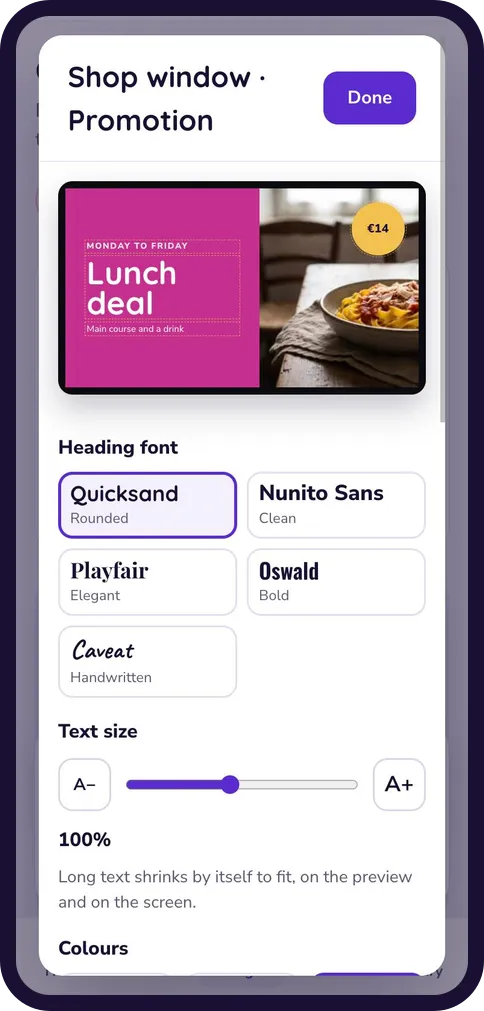
Double-tap the preview, or any text on it, to change the words. You can also:
- Pick one of five heading fonts: rounded, clean, elegant, bold or handwritten.
- Make text bigger or smaller with one slider. Long text shrinks by itself to fit, so nothing gets cut off at the edge of the screen.
- Choose a colour palette, and swap the sample photo for one of yours.
- Switch a screen between landscape and portrait. Most designs rearrange themselves for the new shape.
Already using classic easyCMS?
Nothing you made is lost. Layouts, photos, videos and schedules you created in classic easyCMS stay where they are, and they keep playing wherever they are scheduled.
You don’t need to redo anything. Studio can’t open layouts made in the classic editor, so they stay classic layouts, and Studio’s Home page lists them so you can see what you have. If you’d like one as a Studio design, re-create it from the closest template, or ask us and we’ll rebuild it for you, free of charge, and show you before anything changes on your screens.
Have a menu board? Your prices are already in Studio. Menu & prices edits the same menu your screens show, including menus built in classic easyCMS, so a price changed there reaches every screen that shows it.
While a screen shows a Studio design, its classic schedules are paused, and the Schedule page says so. Choose Remove design on that screen and they play again.
Watch out Classic easyCMS is still there if you need it: Switch to classic easyCMS in the account menu, or Advanced editor on a screen. Studio asks before it takes you there, because designs you make in the classic editor don’t transfer to Studio. If you change a Studio design in the classic editor, Studio replaces those changes the next time you edit that design in Studio.
Try it now
Studio is ready on every easyCMS V4 account. There is nothing to install and nothing to switch on.
Lost your password? Use Forgot Password? on the sign-in page.
New to easyCMS? Start with one screen for a one-time 49€, then use Studio to add your first display and put something on it in a few minutes. If you get stuck anywhere, our support team is happy to help.